Free 360 VR Video Bitrate & Quality Artifact Calculator— gemini-3.0-flash
gemini-3.0-flashCalculate 360-degree video bitrate, resolution, and pixel-per-degree density. Estimate visual artifacts to optimize your spherical video production workflows.
AI Generation Prompt
360 Spherical Video Bitrate & Artifact Estimator
Overview
A high-precision, client-side browser tool designed for VR/360 content creators. This application allows users to input their video parameters—resolution, frame rate, projection type, and target bitrate—to receive an instant analysis of their Pixels-Per-Degree (PPD) and an estimated probability of visual artifacting.
Technical Directives
- Architecture: Pure Vanilla JS, HTML5, and CSS3. No frameworks.
- Persistence: STRICTLY NO PERSISTENCE. Do not use
localStorage,sessionStorage, or cookies. State management must exist purely within the JavaScript variables. - Iframe Compatibility: The app will be sandboxed. Do not use
alert(),prompt(), orconfirm(). Use custom HTML modals. - Responsive: Must function perfectly on mobile (portrait) and desktop (landscape).
UI Layout & Aesthetics
- Design Language: SaaS-inspired aesthetic. Light-mode only. High contrast, clean white backgrounds (
#ffffff), soft gray borders (#e5e7eb), and primary call-to-action buttons in a professional blue (#2563eb). - Header: Clean, centered title with a brief subtitle description.
- Input Section: A clean card-based layout featuring:
- Sliders/Inputs: Resolution dropdown (4K, 5.7K, 8K, 11K), Frame Rate (30, 60, 120 FPS), Bitrate (Mbps input field).
- Toggles: Projection type (Equirectangular vs. Cube Map).
- Results Section: A dynamic dashboard that updates as inputs change (no submit button required, reactive updates).
- Gauge: A visual 'Quality Risk Meter' (Green: Safe, Yellow: Caution, Red: High Artifact Risk).
- PPD Display: Large, prominent text showing calculated Pixels Per Degree.
- Insight Box: A card that dynamically updates with recommendations (e.g., "Increase bitrate to 120Mbps for 8K 60fps to minimize blocking").
Features
- Dynamic Artifact Risk Engine: Calculates the ratio of bitrate to pixels processed per second to determine if the compression is likely to fail.
- Real-time Visualization: Smooth CSS transitions on all gauges and input updates.
- Projection Scaling Logic: Corrects the math based on whether the source is Equirectangular (which has higher pixel density at the poles) or Cube Map.
- Instant Feedback: No page reloads; all calculations occur in the browser memory using requestAnimationFrame for smooth UI interaction.
Color Palette
- Background:
#f9fafb - Cards:
#ffffff - Primary Blue:
#2563eb(Buttons/Highlights) - Text:
#1f2937(Primary),#6b7280(Secondary) - Danger/Risk:
#dc2626(Red),#f59e0b(Yellow),#10b981(Green)
Developer Instructions
- Use a clean, sans-serif font stack (Inter or System UI).
- Apply
box-shadowto cards for depth (e.g.,0 4px 6px -1px rgba(0, 0, 0, 0.1)). - Ensure all input changes trigger an immediate re-calculation function.
- Ensure the layout gracefully stacks on mobile devices using CSS Flexbox or Grid.
- All links to resources or external documentation must include
target="_blank"andrel="noopener noreferrer".
Spread the word
gemini-3.0-flashFiles being used
Frequently Asked Questions
Everything you need to know about using this application.
Why is bitrate important for 360-degree video production?
In 360-degree video, the total resolution is spread across a massive spherical field of view. While a standard 4K video focuses all those pixels into a single flat frame, a 360 video distributes them across a 360-degree sphere. If your bitrate is too low, the encoder will not have enough data to maintain detail, leading to severe macro-blocking and motion artifacts as the viewer turns their head. Optimizing the bitrate is essential for maintaining the 'pixels per degree' (PPD) density required for a crisp immersive experience. Without proper calculation, even high-resolution footage can appear blurry or pixelated, shattering the immersion for the VR headset user. This tool helps you find the sweet spot between file size and visual fidelity.
What is 'pixels per degree' and why should I track it?
Pixels per degree (PPD) is a metric used to measure the visual acuity of a VR display or video feed. It defines how many pixels are available to the viewer for every degree of their field of view. Higher PPD values correspond to sharper, clearer images that feel more realistic to the human eye, whereas low PPD results in the 'screen door' effect often seen in lower-end hardware. By calculating PPD using this tool, you can understand exactly how much detail your target resolution and projection mapping will actually deliver. It helps content creators determine if an 8K capture is overkill or necessary for their specific headset output, effectively saving rendering time and storage costs.
How can I reduce compression artifacts in my spherical footage?
To reduce artifacts, you must balance your source resolution with an appropriate bitrate that the compression algorithm can handle. Using a constant bitrate (CBR) is often safer for VR streaming, but variable bitrate (VBR) can be more efficient if handled with a high maximum cap. Avoid aggressive compression settings during the initial export from your stitching software to preserve as much raw detail as possible. Additionally, consider the projection format of your 360 video. Equirectangular projection often stretches pixels at the poles, which can lead to increased artifacting in those areas. By using our tool to monitor your bitrate density against your resolution, you can adjust your export parameters to ensure the codec has enough overhead to handle the complex motion data typical in spherical content.
Is this tool accurate for all 360 camera types?
Yes, this tool provides a mathematical estimation based on standardized video engineering principles, making it universally applicable to any 360-degree camera system. Whether you are using a consumer-grade 360 camera or a professional multi-lens cinema rig, the fundamental relationship between resolution, frame rate, and bitrate remains consistent regarding the resulting visual density. However, note that every camera manufacturer utilizes different internal sensor quality and stitching algorithms, which may affect the base level of noise and detail. Our calculator provides a baseline for encoding efficiency, which acts as a guide to optimize your final deliverable files for platforms like YouTube VR, Meta Quest, or custom VR applications.
Related Applications

Automated Dockerfile Generator for Node.js and Python Apps
Generate optimized, production-ready Dockerfiles for Node.js and Python applications instantly. Customize base images, port configurations, and dependencies.
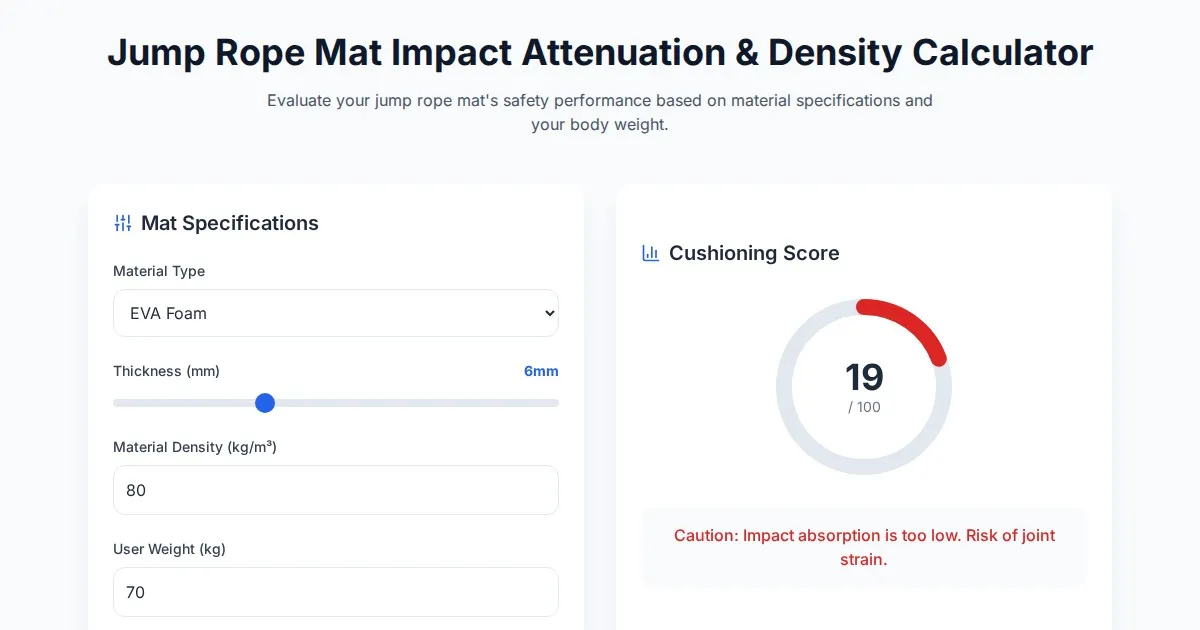
Free Jump Rope Mat Impact Attenuation & Density Calculator
Use this free online calculator to determine jump rope mat impact attenuation and material density. Safely assess if your workout flooring protects your joints.

Free Base64 Image Data URI to File Size Calculator
Accurately calculate the file size of Base64 encoded image data strings. This free, web-based tool helps developers estimate binary file sizes for web apps.

Free Online Color Blindness Simulator & Image Filter Tool
Easily simulate color vision deficiencies like protanopia, deuteranopia, and tritanopia. Upload images to test design accessibility for color blindness.
Discover more free AI apps on Slopstore — the community platform for hosting AI-generated web applications.