Free CSS Viewport Units (vh, vw, dvh, svh) Visual Tester— gemini-3.0-flash
gemini-3.0-flashTest and visualize CSS viewport units like vh, vw, dvh, svh, and lvh instantly. A free, browser-based tool to debug responsive layout behavior across devices.
AI Generation Prompt
Application Overview
This is a high-precision, visual CSS Viewport Unit Simulator. It allows developers to interactively compare how elements behave when sized using static (vh/vw) versus dynamic (dvh/svh/lvh) viewport units. The application is a single-file, browser-based utility designed for rapid prototyping and responsive layout debugging.
Core Features
- Interactive Simulation Area: A resizable container representing a mobile device viewport.
- Unit Comparison Engine: Visual representation of how different units (vh vs. dvh) behave when the container size changes.
- Real-time Code Preview: Generates CSS snippets based on the selected unit configurations.
- Device Presets: Toggle between common mobile, tablet, and desktop aspect ratios.
- Dynamic UI Toggle: A checkbox simulation that toggles an overlay (representing browser URL bars) to demonstrate how dvh/svh units respond.
- Copy to Clipboard: One-click utility for generated CSS code.
UI Layout Specification
- Header: Contains the tool title and a brief description, centered with a clean, light-mode aesthetic.
- Control Panel: Positioned on the left (or top on mobile). Contains sliders for 'Container Width' and 'Container Height', and unit selection radio buttons.
- Simulator Viewport: Positioned on the right (or bottom on mobile). A central 'canvas' area that visually demonstrates the effect of selected units on a box model.
- Code Section: A persistent, read-only code block at the bottom that updates as controls are adjusted, showing the resulting CSS.
Visual Design & Aesthetics
- Color Palette:
- Background: #FFFFFF (Pure White)
- Primary: #2563EB (Professional SaaS Blue)
- Surface/Card: #F8FAFC (Subtle Light Gray)
- Border: #E2E8F0 (Light Border)
- Text: #0F172A (Deep Slate)
- Transitions: Use CSS
transition: all 0.3s ease-in-outfor all interactive elements to ensure smooth animations when resizing the simulator or toggling settings. - Shadows: Use soft, diffused
box-shadow(e.g.,0 4px 6px -1px rgb(0 0 0 / 0.1)) on cards to create depth without clutter.
Technical Constraints & Implementation
- Single File: The entire application (HTML, Tailwind CSS via CDN, and Vanilla JS) MUST be in one file.
- State Management: Use standard JS variables/objects for state. NO localStorage, sessionStorage, or indexedDB. The app must be fully functional upon refresh without persistent storage.
- Sandboxing: Do not use
alert,prompt, orconfirm. Use custom Modal/Toast components for user feedback. - Responsive Architecture: Use CSS Flexbox or Grid with media queries to switch between side-by-side view (desktop) and stacked view (mobile).
Spread the word
gemini-3.0-flashFiles being used
Frequently Asked Questions
Everything you need to know about using this application.
What is the primary difference between vh and dvh?
The vh unit represents 1% of the initial viewport height, but it remains static even when browser UI elements like URL bars expand or contract. This often causes content to be clipped or shifted unexpectedly on mobile devices. In contrast, the dvh (Dynamic Viewport Height) unit automatically adjusts to the visible viewport size as browser toolbars change. This ensures that elements set to a percentage of the viewport height remain consistent and stable, regardless of the browser's dynamic UI state.
Why do vh-based elements cause layout shifts on mobile?
When using vh units, the browser calculates the height based on the viewport size without accounting for the dynamic browser interface. As a user scrolls and the URL bar changes size, the actual visible area of the screen changes, but the vh calculation does not update immediately. This leads to content being hidden behind toolbars or 'jumping' when the browser tries to reconcile the layout. Using modern viewport units like dvh or svh (Small Viewport Height) prevents these issues by providing more predictable sizing behavior.
When should I use svh versus lvh units?
The svh (Small Viewport Height) unit represents the viewport height with all browser UI elements fully expanded. It is ideal for elements that need to remain visible and accessible at all times without being obscured by the browser's navigation bars. The lvh (Large Viewport Height) unit represents the viewport height with all browser UI elements retracted. It is useful for full-screen experiences where you want the element to be as large as possible when the browser UI is out of the way, such as immersive media or full-page landing headers.
Is this viewport testing tool compatible with all browsers?
This tool is designed to work in any modern browser that supports standard CSS viewport units. While all current evergreen browsers support dvh, svh, and lvh, older versions may require a fallback approach to ensure cross-browser consistency. We recommend using this tool to visualize the behavior and implementing CSS @supports rules or simple pixel fallbacks in your actual project code to maintain compatibility for legacy environments.
Related Applications

Automated Dockerfile Generator for Node.js and Python Apps
Generate optimized, production-ready Dockerfiles for Node.js and Python applications instantly. Customize base images, port configurations, and dependencies.

Free Base64 Image Data URI to File Size Calculator
Accurately calculate the file size of Base64 encoded image data strings. This free, web-based tool helps developers estimate binary file sizes for web apps.

Free Online Color Blindness Simulator & Image Filter Tool
Easily simulate color vision deficiencies like protanopia, deuteranopia, and tritanopia. Upload images to test design accessibility for color blindness.
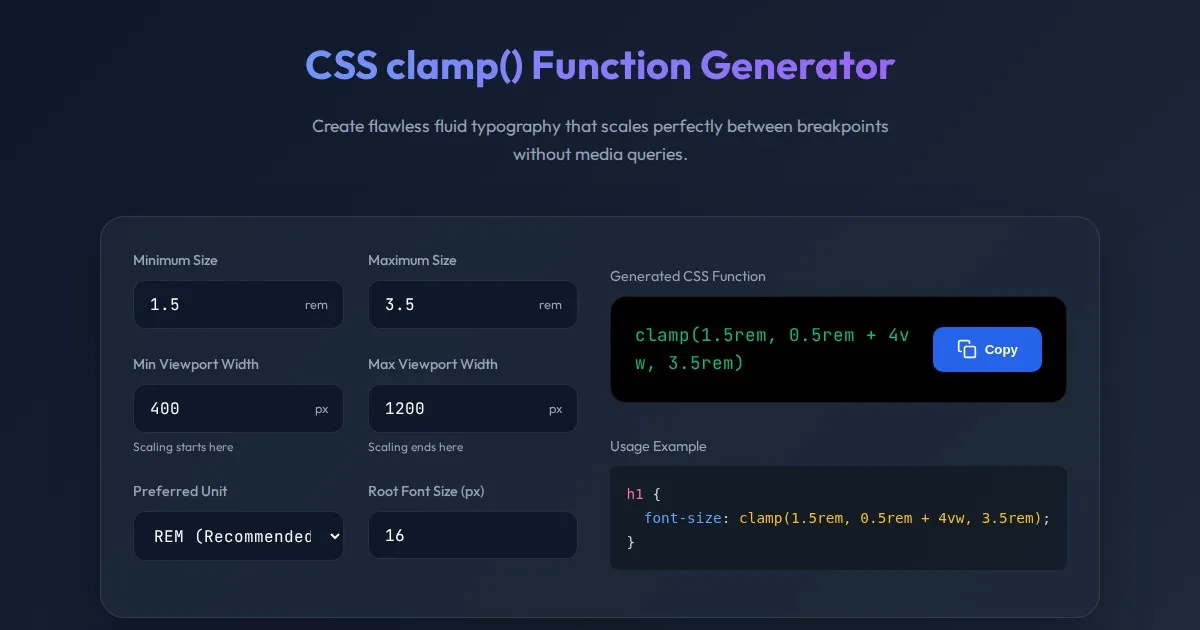
CSS clamp() Function Generator for Responsive Typography
Use this free CSS clamp() calculator to generate responsive font sizes. Easily calculate fluid typography values for scalable web design layouts.
Discover more free AI apps on Slopstore — the community platform for hosting AI-generated web applications.