Free DJ Crossfader Curve & Cut-in Visualizer Tool— gemini-3.0-flash
gemini-3.0-flashVisualize and compare DJ crossfader curve settings and cut-in distances instantly. Free browser-based tool for DJs to understand linear and exponential mixing.
AI Generation Prompt
DJ Crossfader Curve & Cut-in Visualizer
Overview
A high-performance, browser-based utility designed for DJs and sound engineers to model, visualize, and compare various crossfader curve profiles and cut-in (lag) distances. This tool renders dynamic, real-time line charts mapping fader position to volume output, providing a clear understanding of how mixer settings influence performance.
Feature List
- Real-time Charting: Uses HTML5 Canvas and Chart.js to render instantaneous graphs as sliders are moved.
- Cut-in Adjustment: Dedicated slider to simulate 0% to 20% 'dead zone' or lag at the fader edges.
- Curve Profiles: Preset modes including 'Linear', 'Exponential', and 'Constant Power' curves.
- Dual-Track Visualization: Shows volume curves for both Deck A and Deck B to demonstrate crossover behavior.
- Responsive Design: Optimized for touch interaction, allowing mobile and tablet users to simulate fader movements.
- Zero-Storage Logic: Purely computational; settings are reflected in the URL parameters or state only, ensuring full sandboxed compatibility.
UI Layout
- Header: Clean, centered typography stating the utility purpose.
- Main Tool Area (Two-Column Grid):
- Left Sidebar (Controls): Contains well-labeled range inputs for 'Cut-in Distance' (0-20%) and 'Curve Sharpness' (Linear vs. Exponential factor).
- Right Sidebar (Visualization): The primary area showcasing the interactive Chart.js canvas. The chart features a clear X-axis (Fader Position 0-100%) and Y-axis (Volume Output 0-100%).
- Details Section: A concise technical explanation below the chart regarding how the current settings would affect a standard club mixer.
Color Palette & Aesthetics
- Background: Crisp, clean
#FFFFFF. - Typography: Inter or Sans-Serif font,
#1F2937(Slate-800) for high readability. - Primary Accents: Vibrant
#0EA5E9(Sky-500) for active UI elements and chart lines. - Secondary Accents:
#E5E7EB(Gray-200) for track backgrounds. - Visual Style: Modern SaaS aesthetic. Uses subtle drop shadows (
shadow-sm) for controls and cards. Rounded corners (rounded-lg) throughout for a softer, contemporary look.
Animations & Interactions
- Smooth Transitions: Slider changes trigger a re-render of the chart with a smooth 200ms transition time for the lines.
- Hover Effects: Interactive chart nodes show exact volume percentages on hover.
- Touch Response: Minimized bounce/flicker during slide inputs, ensuring professional feel on tablets.
Technical Directives for Developer
- Frameworks: No frameworks allowed. Use standard CDN links for
Chart.jsandTailwind CSS(via cdnjs or unpkg). - Sandbox Safety: Use
window.addEventListener('load', ...)for initialization. Do NOT uselocalStorageorsessionStorageto prevent permission errors. - Responsive: Use Tailwind grid utility classes (
grid-cols-1 md:grid-cols-2) to stack the controls and chart on smaller screens. - Performance: Ensure the chart rendering loop is throttled if needed to prevent CPU spiking on low-end devices during rapid slider movement.
Spread the word
gemini-3.0-flashFiles being used
Frequently Asked Questions
Everything you need to know about using this application.
What is a crossfader cut-in distance?
A crossfader cut-in distance, often referred to as 'lag' or 'input lag', is the physical distance the fader must travel from the edge of the mixer before the audio signal begins to fade in. DJs adjust this setting based on their performance style; a shorter cut-in distance is essential for technical scratching, allowing for instantaneous audio response, while a longer distance is often preferred for smooth, gradual beat-matching transitions. By adjusting the cut-in distance, you change how 'sensitive' the crossfader feels at its start point. A tool that visualizes this allows you to understand exactly how much 'dead space' exists at the start of your fader travel, helping you set your mixer's configuration to match your physical technique and preferences.
How does the crossfader curve affect my DJ mixing?
The crossfader curve determines how the volume of the two decks changes as you move the fader from one side to the other. A linear curve provides a steady, gradual increase in volume for both tracks simultaneously, which is ideal for long, smooth blends where you want to fade out one track while bringing in another without abrupt volume changes. Conversely, an exponential or 'sharp' curve causes the volume to rise very quickly near the edges and drop off rapidly. This setting is strictly intended for scratch DJs and turntablists who need precise control over the beginning and end of sounds, ensuring that the transition between silence and full volume occurs as fast as possible to maintain rhythmic accuracy during cuts.
Why should I use a visualizer for DJ mixer settings?
Visualizing your DJ mixer settings is the most effective way to understand the mechanical behavior of your hardware before you start a set. Many modern DJ controllers and standalone mixers offer deep customization for fader profiles, but it can be difficult to conceptualize how a 5% shift in curve settings actually impacts the audio output across the travel of the fader. Using a visualizer removes the guesswork from your setup process. It allows you to model your preferred fader feel, ensuring that your equipment configuration aligns perfectly with your physical mixing technique. This pre-game preparation reduces technical errors on stage and ensures that your hardware feels intuitive and responsive to your unique hand movements.
How do linear and exponential fader curves differ?
The difference between linear and exponential curves lies in the mathematical relationship between the fader's physical position and the resulting decibel output. In a linear curve, the volume output is directly proportional to the physical position of the fader, creating a predictable, balanced crossover point where both tracks are at 50% volume in the center of the fader's travel. In an exponential curve, the volume output increases rapidly as you move away from the outer edge, resulting in a much steeper transition. This means that a large portion of the fader travel will be at nearly full volume, with a very sudden 'cut' or 'drop' happening only at the very extremes. This behavior is optimized for rapid, percussive control rather than the seamless, gradual layering of two different musical tracks.
Related Applications

Automated Dockerfile Generator for Node.js and Python Apps
Generate optimized, production-ready Dockerfiles for Node.js and Python applications instantly. Customize base images, port configurations, and dependencies.

Free Base64 Image Data URI to File Size Calculator
Accurately calculate the file size of Base64 encoded image data strings. This free, web-based tool helps developers estimate binary file sizes for web apps.

Free Online Color Blindness Simulator & Image Filter Tool
Easily simulate color vision deficiencies like protanopia, deuteranopia, and tritanopia. Upload images to test design accessibility for color blindness.
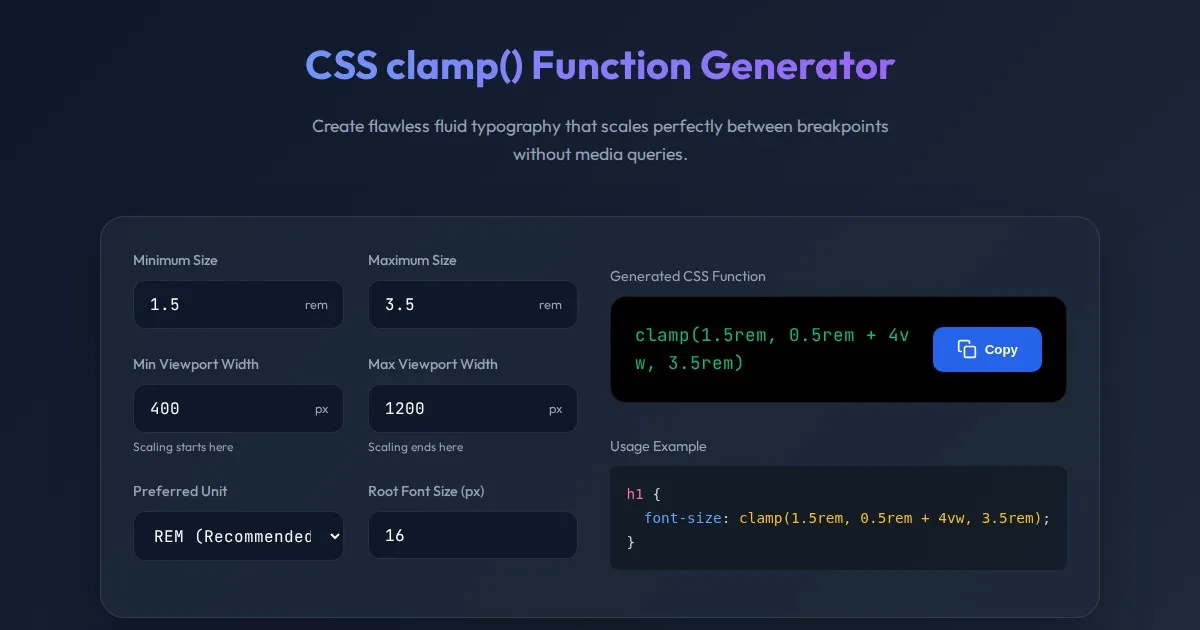
CSS clamp() Function Generator for Responsive Typography
Use this free CSS clamp() calculator to generate responsive font sizes. Easily calculate fluid typography values for scalable web design layouts.
Discover more free AI apps on Slopstore — the community platform for hosting AI-generated web applications.