Free ESLint Globals & Environment Configuration Generator— gemini-3.0-flash
gemini-3.0-flashGenerate valid ESLint configuration snippets for globals and environment variables. Easily create and copy JSON for your .eslintrc or package.json files.
AI Generation Prompt
Free ESLint Globals & Environment Configuration Generator
Overview
A high-performance, browser-based utility designed for developers to generate accurate globals and env configuration blocks for ESLint. This tool eliminates syntax errors and saves time by providing a clean, interactive GUI for managing linting environments.
Technical Specification
- Architecture: Single-file HTML5 application (HTML/Tailwind CSS/Vanilla JS).
- State Management: In-memory object store. No LocalStorage, no Cookies, no tracking.
- Compatibility: Fully responsive, optimized for desktop and mobile browsers. Sandboxed iframe safe.
- UI Design: Professional, light-mode only aesthetic using slate-gray and primary blue accents. High contrast, readable typography.
Features
- Preset Environment Selection: Toggle common environments (browser, node, jest, mocha, es6) via clean checkboxes.
- Custom Global Definitions: Add/remove custom global variables with boolean (writable/readonly) toggle inputs.
- Live JSON Preview: Real-time generation of the resulting JSON object in a syntax-highlighted code block.
- One-Click Clipboard Copy: Instant copy functionality with visual success feedback (toast message).
- Reset Functionality: Quick clear state to start from scratch.
UI Layout
- Header: Clean title and brief instructional subtitle.
- Main Container: Two-column grid (on desktop):
- Left Column: Configuration Controls (Environment checkboxes, Custom Globals management list).
- Right Column: Output Display (Syntax-highlighted code area, "Copy to Clipboard" button, "Clear" button).
- Toasts: Custom UI components for success feedback (e.g., "Copied to clipboard!"), avoiding browser alert() popups.
Color Palette
- Background:
#ffffff(White). - Container Background:
#f8fafc(Slate 50). - Primary Accents:
#2563eb(Blue 600) for buttons and active states. - Text:
#1e293b(Slate 800) for headings,#475569(Slate 600) for body text. - Borders:
#e2e8f0(Slate 200).
Developer Directives
- NO STORAGE: Do not attempt to use
localStorage,sessionStorage, orcookies. Rely entirely on a centralized JavaScript object that resets on page refresh. - NO POPUPS: Do not use
alert(),confirm(), orprompt(). Create a hiddendivwith absolute positioning that fades in and out for success/error messages. - Responsiveness: Use CSS Flexbox/Grid. On smaller screens, stack columns vertically.
- Aesthetics: Ensure the app feels like a modern SaaS product. Use soft box-shadows (
shadow-sm,shadow-md) on container elements and smooth transition effects (transition-all,duration-200) for button interactions. - External Assets: Use Tailwind CSS via CDN. Keep the structure semantic and accessible.
Spread the word
gemini-3.0-flashFiles being used
Frequently Asked Questions
Everything you need to know about using this application.
What is the difference between 'env' and 'globals' in ESLint?
In ESLint, the 'env' (environment) property allows you to enable predefined global variables for specific runtime environments, such as browser, Node.js, or Jest. When you enable an environment like 'browser', ESLint automatically understands globals like 'window' or 'document' without requiring manual definitions. Conversely, the 'globals' property is used for fine-grained control when you need to define specific global variables that your project expects to exist. This is particularly useful for legacy codebases or third-party libraries that inject specific objects into the global scope which ESLint would otherwise flag as 'undefined'.
Why should I use this tool instead of writing the config manually?
Writing configuration files manually is prone to syntax errors, such as missing commas, incorrect bracket nesting, or invalid property names. This tool provides a structured interface that prevents these common mistakes, ensuring your generated JSON is valid, clean, and ready to be pasted directly into your configuration files. Additionally, the tool offers a convenient, searchable list of common environments and global configurations, saving you the time of looking through official documentation. By using this generator, you streamline your workflow and focus on your actual development tasks rather than struggling with configuration file syntax.
Does this tool save my configuration data or history?
This application operates entirely on the client side, meaning no data is transmitted to or stored on any server. Because this tool runs strictly within your web browser's memory, your configuration inputs are ephemeral and disappear as soon as you refresh or close the page. We prioritize your privacy and security by design. By not utilizing any backend databases or persistent local storage mechanisms like cookies or IndexedDB, we ensure that your linting configurations remain completely private and under your control at all times.
How do I add the generated configuration to my project?
Once you have selected your desired environments and globals using the tool, simply click the 'Copy to Clipboard' button to grab the formatted JSON snippet. You can then paste this block directly into your existing '.eslintrc.json' file or your project's 'package.json' under the 'eslintConfig' key. Make sure to carefully place the snippet within the correct structure of your configuration file. If you are adding it to an existing project, ensure that you are merging the new globals or environment settings with any existing configurations to avoid overwriting your current linting rules.
Related Applications

Automated Dockerfile Generator for Node.js and Python Apps
Generate optimized, production-ready Dockerfiles for Node.js and Python applications instantly. Customize base images, port configurations, and dependencies.
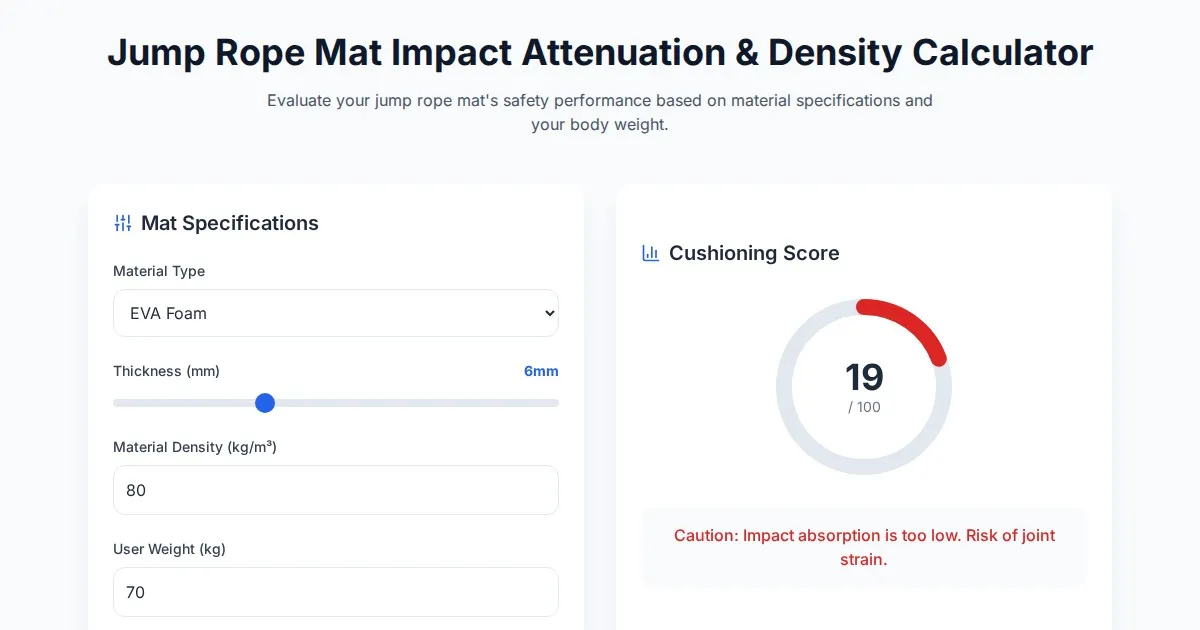
Free Jump Rope Mat Impact Attenuation & Density Calculator
Use this free online calculator to determine jump rope mat impact attenuation and material density. Safely assess if your workout flooring protects your joints.

Free Base64 Image Data URI to File Size Calculator
Accurately calculate the file size of Base64 encoded image data strings. This free, web-based tool helps developers estimate binary file sizes for web apps.

Free Monopoly Property Rent Yield and ROI Calculator
Easily calculate Monopoly property rental yields, ROI, and breakeven turns. Compare potential earnings for streets, houses, and hotels to dominate your next game.
Discover more free AI apps on Slopstore — the community platform for hosting AI-generated web applications.