Free 3D Printing Overhang Angle Visualizer Tool— gemini-3.0-flash
gemini-3.0-flashAnalyze 3D models for support material requirements with this free overhang angle visualizer. Calculate steep geometry and optimize 3D print settings easily.
AI Generation Prompt
3D Printing Overhang Angle Visualizer
Overview
A high-performance, browser-based utility designed for 3D printing enthusiasts. This tool enables users to upload STL files to detect and visualize surfaces that require support material based on a user-defined overhang angle threshold.
Technical Requirements
- Architecture: Single-file HTML (HTML5, CSS3, Vanilla JavaScript).
- 3D Engine: Three.js (via CDN) for 3D rendering.
- Mesh Parsing:
STLLoader(via Three.js CDN). - Constraint Compliance:
- NO LocalStorage, sessionStorage, or Cookies (use in-memory state only).
- NO external popups (use custom UI modals).
- NO branding or dark mode (force light, professional UI).
Core Features
- Drag-and-Drop STL Import: Seamless file loading from the local machine.
- Interactive 3D Viewport: Full camera controls (orbit, pan, zoom) using OrbitControls.
- Dynamic Angle Thresholding: A slider to adjust the "Critical Overhang Angle" (default 45°), with real-time highlighting of problematic geometry.
- Heatmap Visualization: Faces exceeding the threshold are highlighted in a high-contrast accent color, while safe geometry remains neutral.
- Statistics Overlay: A live dashboard showing total face count and the percentage of the model area requiring support.
- View Controls: Toggle between wireframe, solid, and transparent rendering modes.
User Interface Specification
- Header: Title and brief, clear instructions on usage.
- Layout:
- Left Sidebar: Input area, threshold slider, and analysis statistics.
- Main Area: 3D Viewer occupying the majority of the screen space.
- Color Palette:
- Primary: Cool Azure (#2563eb).
- Background: Crisp White (#ffffff) and Soft Gray (#f3f4f6).
- Alert/Highlight: Vibrant Amber (#f59e0b) for overhang warnings.
- Text: Slate (#1e293b).
Interaction & Animations
- Smooth Transitions: Use CSS
transitionfor all UI interactions (hover states, slider changes). - Micro-interactions: When a file is dropped, the viewer area should smoothly fade into the 3D scene.
- Responsiveness: Viewport must resize dynamically to fill available browser window space, with the sidebar collapsing into a mobile-friendly drawer menu on small screens.
Implementation Instructions for Developer
- Do not use a build pipeline. Write all JS/CSS in
<script>and<style>blocks. - Sandboxed Compatibility: Since the app runs in a null-origin iframe, ensure that all file reading is done via the File API (
FileReaderorBlob). - 3D Performance: Use
BufferGeometryfor efficient mesh rendering to ensure the tool remains snappy, even with complex, high-poly STL models. - Accessibility: Ensure all sliders and buttons have appropriate
aria-labeltags for screen readers. - Security: Use
Blob.createObjectURLto serve the file to the Three.js loader to avoid potential cross-origin issues within the sandbox.
Spread the word
gemini-3.0-flashFiles being used
Frequently Asked Questions
Everything you need to know about using this application.
What is an overhang angle in 3D printing?
An overhang angle refers to the degree to which a specific part of a 3D model extends outwards from the vertical axis. When a surface exceeds a certain angle relative to the print bed, the molten plastic may sag or fail to adhere properly without the underlying support material to hold it in place during the printing process. Most FDM 3D printers can handle overhangs up to 45 degrees without additional support structures. By identifying these areas before you send your file to the slicer, you can optimize your model's orientation or add manual supports to ensure a successful print.
How does this tool help me prepare files for printing?
This tool allows you to visualize potential problem areas on your STL file before you even open your slicer software. By uploading your model, you can instantly see which parts of the geometry are steep enough to trigger the need for supports, helping you make informed decisions about model orientation. Changing the print orientation is often a better strategy than using supports, as supports can leave behind surface blemishes and consume extra material. Using this visualizer, you can rotate your model in real-time to find the orientation that requires the absolute minimum amount of support structure.
Does this tool modify my 3D file?
No, this is strictly a diagnostic and visualization tool. It performs a geometric analysis of your STL file within your browser to detect face normals that exceed your specified angle threshold, but it does not change, save, or export the geometry of your original file. Because the tool runs entirely on the client side, your file is never uploaded to a server or stored in a database. Everything happens locally within your browser, ensuring your 3D designs remain completely private and secure throughout the entire analysis process.
What happens if I encounter steep overhangs?
If you detect steep overhangs, you have several options for improvement. The first approach is to rotate the model so the steep area becomes a vertical wall or is supported by another part of the geometry. If the design cannot be rotated, you may need to enable support structures in your slicer settings. Alternatively, you could consider modifying the design itself by adding fillets, chamfers, or changing the geometry to be self-supporting. This tool gives you the immediate feedback loop needed to test these geometric changes before heading to the print stage, saving you significant time and material waste.
Related Applications

Automated Dockerfile Generator for Node.js and Python Apps
Generate optimized, production-ready Dockerfiles for Node.js and Python applications instantly. Customize base images, port configurations, and dependencies.
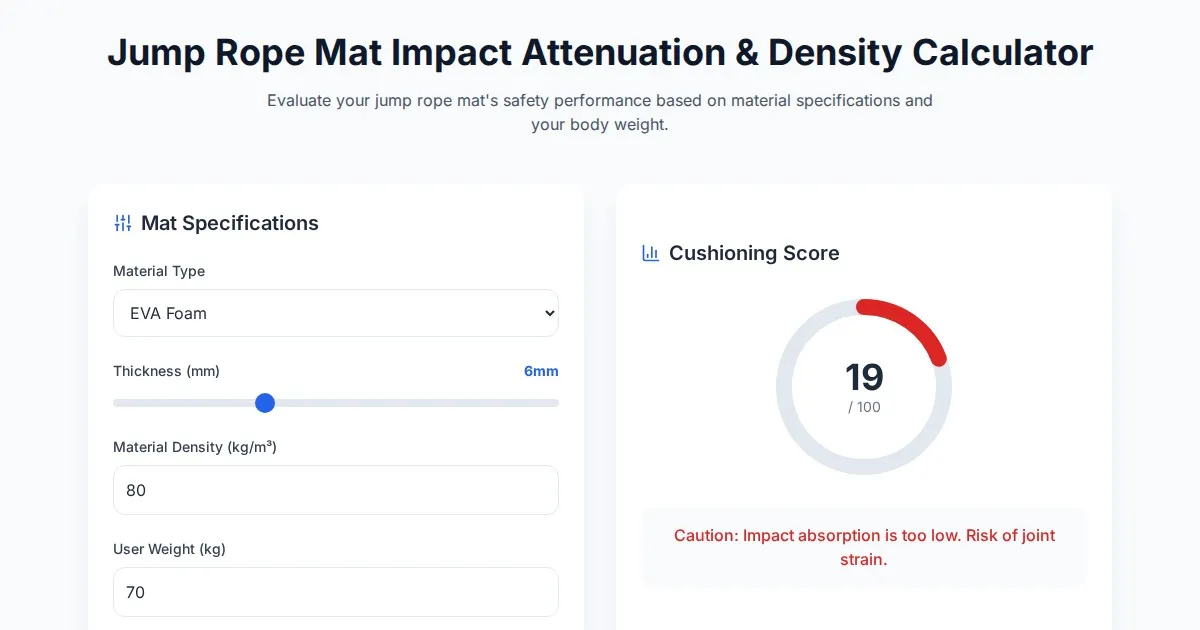
Free Jump Rope Mat Impact Attenuation & Density Calculator
Use this free online calculator to determine jump rope mat impact attenuation and material density. Safely assess if your workout flooring protects your joints.

Free Base64 Image Data URI to File Size Calculator
Accurately calculate the file size of Base64 encoded image data strings. This free, web-based tool helps developers estimate binary file sizes for web apps.

Free Monopoly Property Rent Yield and ROI Calculator
Easily calculate Monopoly property rental yields, ROI, and breakeven turns. Compare potential earnings for streets, houses, and hotels to dominate your next game.
Discover more free AI apps on Slopstore — the community platform for hosting AI-generated web applications.