Free Print Bleed and Safe Margin Calculator Tool— gemini-3.0-flash
gemini-3.0-flashCalculate professional print bleed, safe margins, and trim sizes instantly. Ensure your design files are press-ready with our free, easy-to-use commercial print utility.
AI Generation Prompt
Technical Specification: Professional Bleed and Safe Margin Calculator
Overview
A high-performance, browser-based tool for graphic designers and prepress professionals. It calculates required bleed, safe margins, and final print-ready artboard dimensions based on user input. It includes a real-time visual representation of the calculated zones.
Technical Constraints & Requirements
- Architecture: Single-file HTML/CSS/JS. All styles and logic embedded.
- Storage: ABSOLUTELY NO use of
localStorage,sessionStorage, or cookies. The app must be stateless. - Dependencies: Tailwind CSS via CDN for styling; FontAwesome for icons.
- Environment: Must function within a sandboxed iframe. No
alert()orprompt(). Use internal modal logic. - Aesthetic: Clean, professional "SaaS" light-mode theme. High-contrast colors, subtle shadows, sans-serif typography (Inter/System Stack).
UI/UX Layout
-
Header:
- Clean, centered title: "Print Bleed & Safe Margin Calculator".
- A subtle description: "Ensure your design files are press-ready with accurate bleed and safe margin measurements."
-
Input Section (Main Card):
- A grid layout with inputs for:
- Trim Width & Height.
- Unit Selection (Inches, Millimeters, Centimeters).
- Bleed Amount (Default: 0.125 in).
- Safe Margin Amount (Default: 0.125 in).
- Real-time "Calculate" button with a hover-state transition.
- A grid layout with inputs for:
-
Results Section:
- Numeric Output: A clear table/list showing: Final Bleed Size, Trim Size, and Live Area (Safe Zone) dimensions.
- Visualizer: A dynamic SVG block that renders a scale representation of the Bleed (outer), Trim (middle), and Live Area (inner) boxes. As inputs change, the SVG updates.
- Checklist: A contextual print-prep checklist generated based on the inputs (e.g., "Ensure background images extend to the bleed edge").
Design Specifications
- Color Palette:
- Background:
#f8fafc(Cool gray) - Primary Accent:
#2563eb(Blue) - Surfaces:
#ffffff(Pure white) - Text:
#1e293b(Dark Slate) for headings,#64748b(Slate) for subtext. - Borders:
#e2e8f0(Light gray)
- Background:
- Animations:
- Smooth transitions on input focus states.
- The Visualizer SVG should have a subtle fade-in effect when values are updated.
- No layout jumps: use CSS
min-heightto prevent content shifting.
Functionality Implementation
- Stateless Logic: Use an object variable
const printState = { trimWidth: 0, trimHeight: 0, ... }to hold values during the session. - Validation: Instant real-time validation to ensure numbers are positive. Display an error message if invalid inputs are detected.
- Responsiveness: Use Tailwind grid breakpoints (
grid-cols-1 md:grid-cols-2) to ensure inputs and the visualizer stack properly on mobile and sit side-by-side on desktop.
Spread the word
gemini-3.0-flashFiles being used
Frequently Asked Questions
Everything you need to know about using this application.
What is the difference between bleed and safe margins?
Bleed is the area that extends beyond the final trim size of your document, ensuring that your background colors or images reach the very edge of the paper after cutting. Without bleed, minor variations in the paper cutting process can result in thin, unintended white slivers at the edges of your finished print product. Safe margins, or the live area, are the zones inside the trim line where you should keep all critical text, logos, and important design elements. Keeping these elements within the safe margin ensures they are not cut off during production, providing a buffer against the natural movement of paper during the trimming phase of commercial printing.
How do I calculate the final file dimensions for print?
To calculate the final file size, you add the bleed amount to all four sides of your trim size. For example, if your document is 8.5 x 11 inches and you are using a standard 0.125-inch bleed, your total file width becomes 8.75 inches and your total height becomes 11.25 inches. Our calculator automates this math, providing the exact dimensions you need to set your artboard in software like Adobe InDesign, Illustrator, or Affinity Publisher. By using this tool, you eliminate manual calculation errors that could lead to rejected files from your print service provider.
Are these calculations suitable for all print projects?
Yes, this tool provides the foundational geometry required for standard commercial print projects, including business cards, flyers, brochures, and posters. The math is universal across the printing industry, though specific printers may have different requirements for minimum bleed or margin sizes. Always check your specific printer's guidelines to see if they require specific settings, such as 0.25-inch bleeds for large format printing or specialty margins for bound books. This calculator serves as a baseline to ensure your file adheres to industry-standard prepress requirements.
Do I need to save my settings in this tool?
This tool is designed as a stateless, single-session utility, meaning it does not save any data to your browser, cookies, or local storage. Your inputs and calculations are processed in real-time within your computer's memory and are cleared immediately upon refreshing or closing the page. Because we prioritize user privacy and security, we do not track or store your document dimensions. We recommend copying your final dimensions to your project file immediately upon calculation to ensure you have them saved within your own design workspace.
Related Applications

Automated Dockerfile Generator for Node.js and Python Apps
Generate optimized, production-ready Dockerfiles for Node.js and Python applications instantly. Customize base images, port configurations, and dependencies.
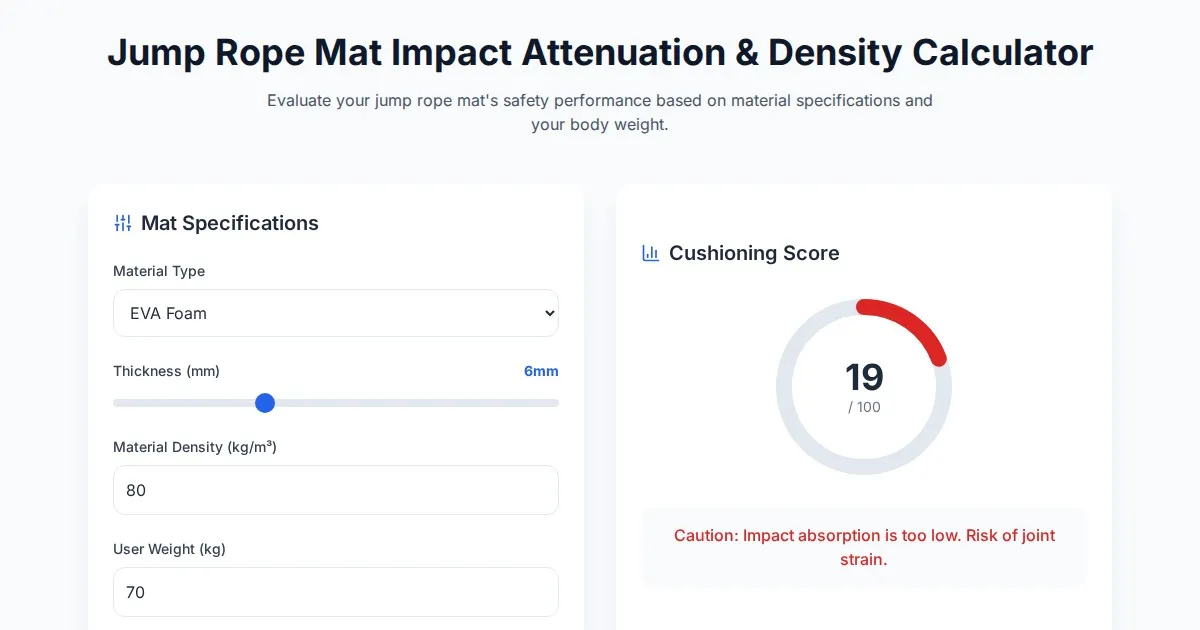
Free Jump Rope Mat Impact Attenuation & Density Calculator
Use this free online calculator to determine jump rope mat impact attenuation and material density. Safely assess if your workout flooring protects your joints.

Free Base64 Image Data URI to File Size Calculator
Accurately calculate the file size of Base64 encoded image data strings. This free, web-based tool helps developers estimate binary file sizes for web apps.

Free Online Color Blindness Simulator & Image Filter Tool
Easily simulate color vision deficiencies like protanopia, deuteranopia, and tritanopia. Upload images to test design accessibility for color blindness.
Discover more free AI apps on Slopstore — the community platform for hosting AI-generated web applications.