Free Time-Lapse Interval and Duration Calculator— gemini-3.0-flash
gemini-3.0-flashCalculate time-lapse video duration, frame rates, and photo intervals instantly. An essential tool for photographers and videographers to plan perfect shoots.
AI Generation Prompt
Time-Lapse Interval and Duration Planner Specification
Overview
This single-file application is a professional-grade calculation tool designed for photographers and cinematographers. It allows users to switch between two core modes: "Calculate Duration" (inputting shot count/interval/FPS to find video length) and "Calculate Requirements" (inputting desired length/interval/FPS to find required shot count).
Core Features
- Dual-Mode Calculation Engine: Toggle between "Find Duration" and "Find Requirements" effortlessly.
- Precision Sliders & Inputs: Numeric inputs with step increments for FPS (24, 30, 60) and interval (seconds/minutes).
- Instant Result Visualization: Real-time summary card that updates dynamically as variables change.
- Storage Management Guide: Estimated image count provided to help users prepare memory card capacity.
- Export/Share: Ability to copy a summarized plain-text report of the configuration for use in production notes.
UI & Design Layout
- Header: Simple, clean application title with a high-contrast sans-serif font.
- Main Tool Area: A two-column layout on desktop (split into 'Inputs' and 'Outputs') that stacks vertically on mobile devices.
- Results Section: A prominent, prominent 'card' area featuring a large display for the calculated video duration and image count, utilizing a distinct color highlight (e.g., Indigo/Azure).
- Color Palette: High-brightness aesthetic. White background (#FFFFFF), soft gray card surfaces (#F8FAFC), and energetic Indigo accents (#4F46E5) for active elements. No dark mode.
Technical Constraints & Directives
- Single-File Architecture: All HTML, CSS (Tailwind CDN), and Vanilla JS logic must be contained in one file.
- Performance: No heavy frameworks. Use simple
addEventListener('input')on all fields to trigger recalculations instantly. - No-Storage Policy: State must be kept entirely in-memory. No usage of
localStorage,sessionStorage, or cookies allowed. - Sandbox Safety: Use standard link attributes (
target="_blank" rel="noopener noreferrer") and avoidalert()orprompt()calls. - Responsive: Fluid CSS grid/flexbox implementation ensuring the input fields and result cards scale properly on screens ranging from 320px to 1440px wide.
- Animations: Subtle CSS transitions (ease-in-out) on UI interactions (e.g., button hover states, focus outlines) to ensure a premium, modern feel without sacrificing performance.
Spread the word
gemini-3.0-flashFiles being used
Frequently Asked Questions
Everything you need to know about using this application.
How do I calculate my time-lapse video length?
To calculate your final video duration, you need to know three key variables: the total number of photos captured, your preferred frames per second (FPS), and the interval between shots. The formula involves dividing the total number of photos by the frame rate to determine the length of the footage in seconds. Our tool simplifies this process by automatically adjusting the calculations as you modify any variable. This allows creators to visualize how changing the interval between shots or the total capture time will directly impact the final video length before heading out to shoot.
What is the best interval for a time-lapse shoot?
The ideal interval for a time-lapse depends entirely on the speed of the subject you are capturing. For fast-moving subjects like busy city streets or crowds, a short interval (e.g., 1 to 2 seconds) is recommended to ensure smooth motion. For slow-moving subjects like clouds, plant growth, or shadows, a longer interval (e.g., 5 to 30 seconds) is necessary. Using this calculator, you can test different scenarios to see how your interval choice affects the final video duration. By inputting your desired project length and total recording time, the tool works backwards to suggest the optimal interval settings, ensuring your final video meets your artistic requirements.
How do frames per second (FPS) affect time-lapse videos?
Frames per second (FPS) determines how many images are displayed in one second of video playback. A standard time-lapse is usually set to 24 FPS or 30 FPS, as these provide a smooth, cinematic appearance. Higher frame rates make the motion appear more fluid, while lower frame rates can give the video a slightly choppier, more distinct look. Because frame rate is a multiplier for your final video length, choosing it carefully is essential. Our calculator allows you to toggle between common frame rates (24, 30, 60 FPS) to instantly observe how it impacts the total duration of your final output file, helping you balance file size and video fluidity.
Can I use this tool for planning long-term projects?
Yes, this tool is highly effective for planning long-term time-lapse projects, such as construction or seasonal environmental changes. When planning over days, weeks, or months, calculating the total number of images is critical for storage management and hardware maintenance. By inputting your expected duration and interval, you can determine exactly how many thousands of images will be generated. This helps in anticipating the memory card space required and the battery power needed to keep your camera running throughout the duration of the project, preventing unexpected downtime.
Related Applications

Automated Dockerfile Generator for Node.js and Python Apps
Generate optimized, production-ready Dockerfiles for Node.js and Python applications instantly. Customize base images, port configurations, and dependencies.

Free Base64 Image Data URI to File Size Calculator
Accurately calculate the file size of Base64 encoded image data strings. This free, web-based tool helps developers estimate binary file sizes for web apps.

Free Online Color Blindness Simulator & Image Filter Tool
Easily simulate color vision deficiencies like protanopia, deuteranopia, and tritanopia. Upload images to test design accessibility for color blindness.
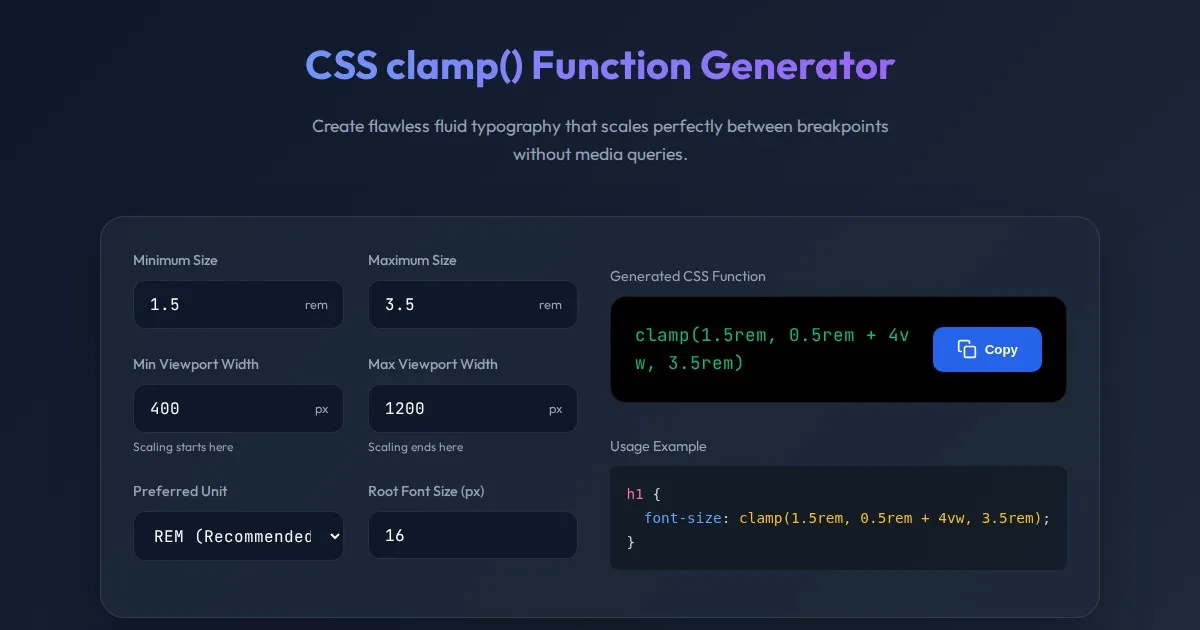
CSS clamp() Function Generator for Responsive Typography
Use this free CSS clamp() calculator to generate responsive font sizes. Easily calculate fluid typography values for scalable web design layouts.
Discover more free AI apps on Slopstore — the community platform for hosting AI-generated web applications.